

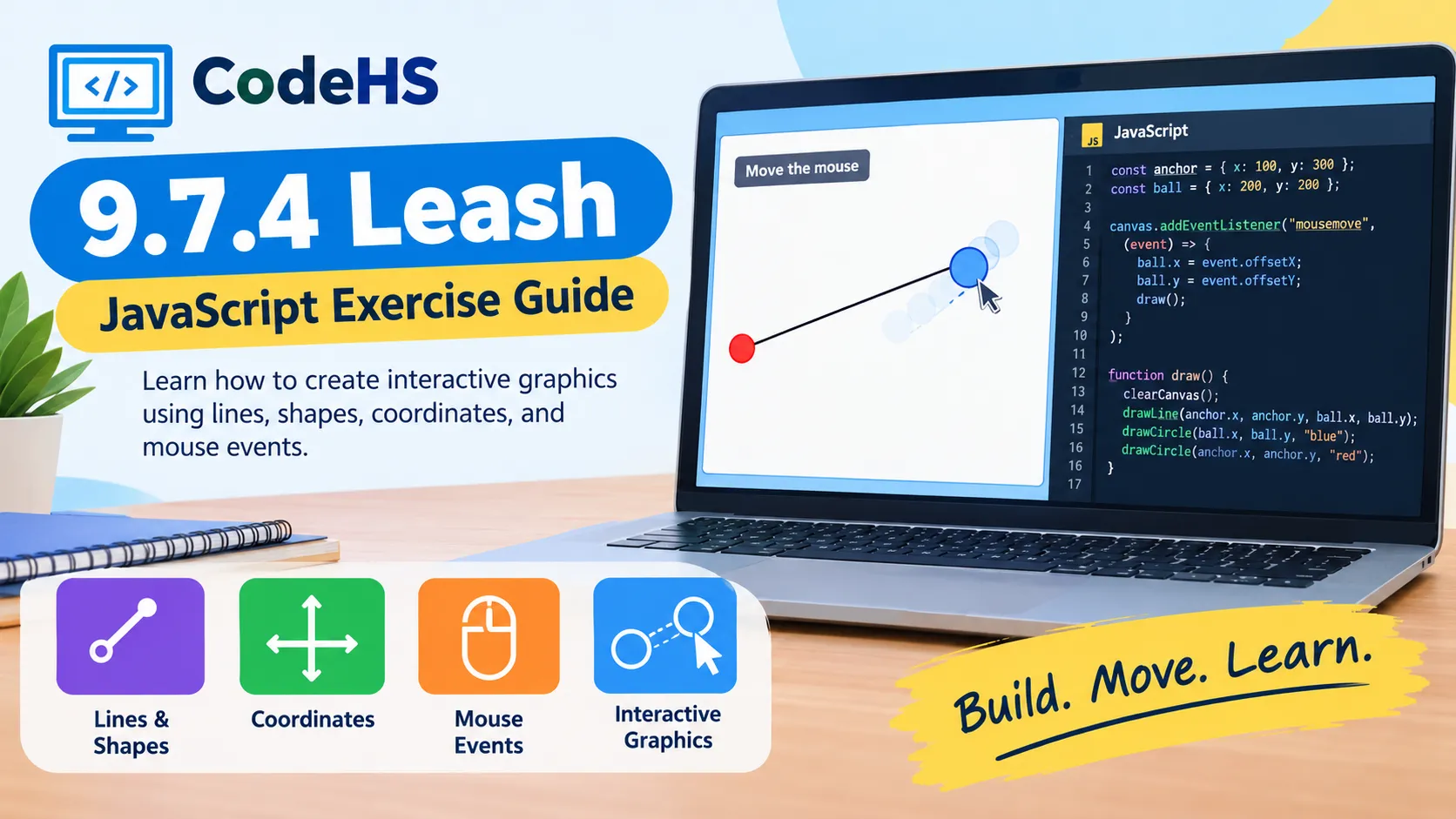
9.7.4 Leash is a JavaScript graphics exercise on CodeHS that teaches students how to create interactive graphics using lines, shapes, coordinates, and mouse events. The exercise appears in Lesson 9.7, Drawing Lines, in CodeHS’s Introduction to Computer Science in JavaScript course.
The main learning goal is to understand how a graphical object can move in response to mouse input while a line connects it to a fixed point. By working through the exercise, students can practice event-driven programming and learn how multiple graphical elements respond to the same mouse movement.
What Is 9.7.4 Leash?
9.7.4 Leash is a beginner-level programming activity that combines drawing and interaction. CodeHS lists it as a five-point exercise following the lesson’s introduction to drawing lines.
The word leash describes the visual effect created by the program. A line connects a fixed location to a moving graphical object, making the object appear to be attached to an anchor point as it travels across the screen.
The exercise is useful because it moves beyond static drawings. Instead of creating shapes that remain in one place, students learn to update existing objects when the user moves the mouse.
What Does 9.7.4 Mean in CodeHS?
The number 9.7.4 identifies the exercise’s position in a particular course structure. In the CodeHS Introduction to Computer Science in JavaScript course, the numbers correspond to Lesson 9.7, Drawing Lines, and its fourth activity, Leash.
The numbering can vary between courses. For example, CodeHS lists a Leash exercise as 11.7.4 in its Intro to Programming in JavaScript with Arduino course and 27.6.4 in an AP Computer Science Principles course.
This means students should check their own CodeHS course and assignment instructions rather than relying on the exercise number alone.
What Programming Concepts Does 9.7.4 Leash Teach?
The Leash exercise brings together several foundational programming concepts. Understanding these ideas makes the task easier to complete and helps students prepare for more advanced graphics assignments.
1. Coordinate Systems
A graphics canvas uses two coordinates to identify a position.
- X-coordinate: Determines the horizontal position.
- Y-coordinate: Determines the vertical position.
For example, the coordinates (200, 150) identify a point 200 units across and 150 units down from the canvas origin in a typical screen-based coordinate system.
The program can use mouse coordinates to position a circle and update the endpoint of a line.
2. Graphics Objects
JavaScript graphics environments such as CodeHS provide objects for drawing shapes and lines. A circle can represent the moving object, while a line connects it to an anchor point.
Rather than creating new objects every time the mouse moves, a program can create them once and update their positions. This keeps the code simpler and avoids unnecessary objects accumulating on the canvas.
3. Mouse Events
A mouse event occurs when a user performs an action such as moving or clicking the pointer. In an interactive graphics program, an event handler runs a function when the registered action occurs.
For a mouse-movement exercise, the program needs to read the pointer’s current coordinates and use them to update the graphics.
4. Functions and Event-Driven Programming
A function groups instructions into a reusable block of code. Event-driven programming uses these functions to respond to actions instead of executing every instruction in a fixed sequence.
In the Leash exercise, an initialization function creates the graphics objects, while a separate event function updates them when the mouse moves.
How to Approach the 9.7.4 Leash Exercise
The most reliable approach is to divide the task into smaller steps. The exact requirements should come from the instructions displayed in your CodeHS account.
- Create the anchor point. Calculate the center of the canvas or use the fixed location specified by the assignment.
- Create the moving object. Add a circle or whichever graphical object the instructions require.
- Draw the line. Connect the anchor point to the initial position of the moving object.
- Register the mouse event. Set up the appropriate event handler so the program responds to pointer movement.
- Update the graphics. Move the object and update the appropriate line endpoint using the latest mouse coordinates.
- Test the result. Run the program, move the mouse around the canvas, and check whether the line remains connected to the moving object.
The key is to maintain the relationship between the moving object’s position and the line endpoint. If those coordinates do not match, the graphics may appear disconnected.
Example JavaScript Logic for a Leash Effect
The following example illustrates the basic idea using CodeHS-style JavaScript Graphics methods. It is an educational example, not a guarantee of the exact answer expected by every version of exercise 9.7.4.
var BALL_RADIUS = 20;

var ball;
var leashLine;

function start() {
    var centerX = getWidth() / 2;
    var centerY = getHeight() / 2;

    ball = new Circle(BALL_RADIUS);
    ball.setPosition(centerX, centerY);
    add(ball);

    leashLine = new Line(
        centerX, centerY,
        centerX, centerY
    );
    add(leashLine);

    mouseMoveMethod(moveLeash);
}

function moveLeash(e) {
    var mouseX = e.getX();
    var mouseY = e.getY();

    ball.setPosition(mouseX, mouseY);
    leashLine.setEndpoint(mouseX, mouseY);
}
How the Example Works
The start() function calculates the center of the canvas, creates a circle and a line, and registers a mouse-movement handler. The line begins with both endpoints at the center.
When the mouse moves, moveLeash(e) reads the new X and Y coordinates from the event object. It then moves the circle to those coordinates and updates the line’s endpoint to match.
The fixed endpoint remains at the center, so the line visually follows the moving circle. This demonstrates how mouse events and coordinate updates can control more than one graphical object.
Important: Check the method names and required behavior against the graphics environment and instructions in your course. Different CodeHS courses or exercise versions may use different requirements.
Common Problems and How to Fix Them
Students can encounter a few predictable errors while working on interactive graphics. Most are related to event registration, object references, or coordinates.
| Problem | Likely cause | What to check |
|---|---|---|
| The circle does not move | Mouse handler is missing or incorrectly registered | Check the event registration and function name |
| The line stays still | Its endpoint is not updated | Update the moving endpoint during mouse movement |
| The circle and line separate | Their positions use different coordinates | Use the same current X and Y values |
| Graphics disappear or behave unexpectedly | Objects are repeatedly recreated | Create the objects once and update them |
| The program reports an error | A method or variable is misspelled | Check capitalization and syntax |
JavaScript is case-sensitive, so names such as getX() and getx() are not interchangeable. The same principle applies to variables, function names, and graphics methods.
Another frequent mistake is registering an event handler by calling the function immediately instead of passing the function reference. Review the expected syntax in the course examples if the handler does not behave as intended.
Why Is 9.7.4 Leash Useful for Beginners?
The exercise teaches a pattern that appears in many interactive applications. Moving a shape with the mouse may seem simple, but the same principles support drag-and-drop interfaces, drawing applications, simple animations, and game controls.
It also helps students understand the difference between initializing an object and updating it. Creating a circle is one operation; responding to user input and changing its position is another. Learning to separate these responsibilities makes later programs easier to understand and maintain.
Is 9.7.4 Leash Difficult?
For students who already understand basic JavaScript functions and graphics, the exercise is generally manageable. The more challenging part is connecting mouse events to the correct graphical updates.
If you are struggling, start by making a circle appear at a known location. Then register a mouse-movement event and make the circle follow the pointer. Once that works, add the line and update its endpoint using the same coordinates.
This step-by-step method makes it easier to identify errors without changing several parts of the program at once.
Frequently Asked Questions
1. What is 9.7.4 Leash in CodeHS?
9.7.4 Leash is a five-point JavaScript graphics exercise in CodeHS’s Introduction to Computer Science in JavaScript curriculum. It appears in Lesson 9.7, Drawing Lines, and provides practice with interactive graphics.
2. Which programming language does the Leash exercise use?
The course version discussed here uses JavaScript with CodeHS graphics tools. The platform also offers other programming courses, so students should verify the language used in their assigned course.
3. What is the main purpose of the Leash exercise?
The exercise helps students understand how a line and a moving graphical object can work together. It reinforces coordinates, mouse events, graphics methods, and event-driven programming.
4. Why does the circle not follow my mouse?
The mouse-movement event may not be registered correctly, or the event function may not update the circle’s position. Check the function name, event registration, and coordinate values, then run the program again.
5. Why does the leash line stop following the circle?
The line’s moving endpoint may not be updated when the mouse moves, or it may use different coordinates from the circle. Make sure the endpoint and circle position are updated consistently.
6. Is 9.7.4 Leash the same in every CodeHS course?
No. CodeHS uses different numbering systems across its courses. The platform lists the exercise under different lesson numbers, so students should follow the instructions in their own course rather than assuming every version is identical.
Also Read: prothots: What the Keyword Means and How to Protect Privacy

1 Comment
Pingback: Wheon Com: Website Overview, Features, Safety, and Alternatives